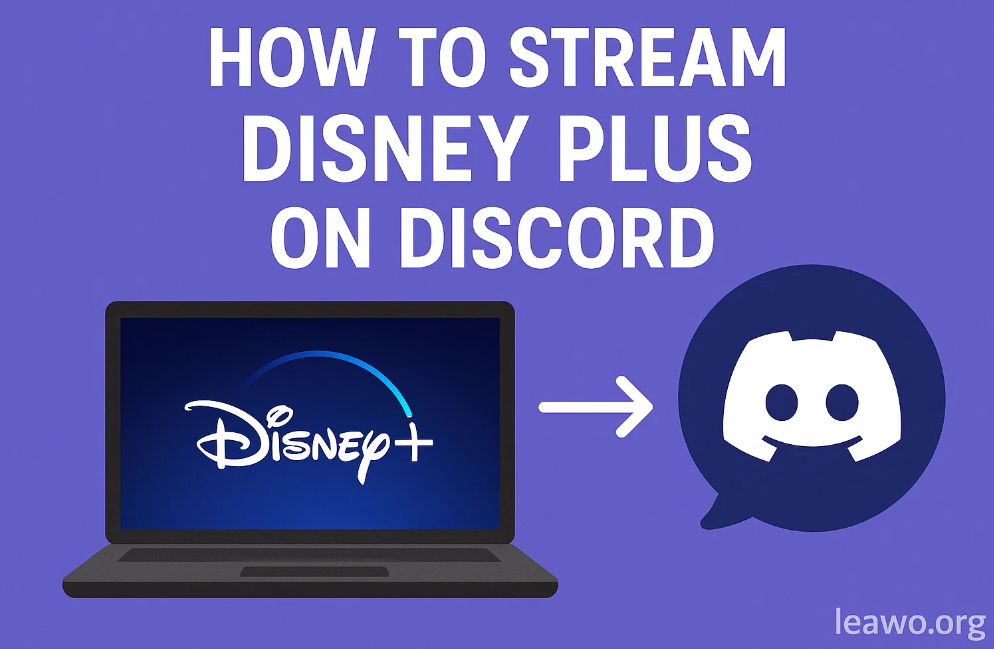
Discord has become the go-to platform for streaming content with friends, but many users wonder: can you stream Disney Plus on Discord? The answer is yes, though it requires some workarounds due to DRM (Digital Rights Management) protection. Whether you’re planning a virtual movie night with Marvel movies, want to binge Star Wars series with friends, or share Disney classics with family, this guide will show you exactly how to stream Disney Plus on Discord.
Disney Plus uses digital rights management that often results in a frustrating black screen when you try to share it directly. This security measure is designed to prevent unauthorized distribution, but it also blocks legitimate screen sharing. However, there are several proven methods to bypass these restrictions and successfully stream Disney Plus content to your Discord server without quality loss.
Prerequisites & What You’ll Need
Before you start streaming, make sure you have:
- An active Disney Plus subscription
- Discord desktop application (Windows or Mac)
- A stable internet connection (minimum 5 Mbps upload speed recommended)
- Updated graphics drivers
- Administrative access to your computer (for some methods)
Optional but recommended:
- Discord Nitro subscription for higher quality streaming
- A secondary monitor for better multitasking
- Good quality microphone for commentary
Method 1: Stream Disney Plus via Browser Screen Share
This is the most straightforward method to watch Disney Plus on Discord without dealing with the dreaded black screen.
Step 1: Disable Hardware Acceleration in Your Browser
For Chrome:
- Open Chrome and go to Settings
- Click on “Advanced” at the bottom
- Navigate to “System”
- Toggle off “Use hardware acceleration when available”
- Restart Chrome
For Firefox:
- Open Firefox and go to Settings
- Scroll down to “Performance”
- Uncheck “Use recommended performance settings”
- Uncheck “Use hardware acceleration when available”
- Restart Firefox
Step 2: Set Up Discord Screen Share
- Open Discord and join a voice channel
- Click the “Screen” icon to start screen sharing
- Select your browser window (not the entire screen)
- Choose your streaming quality (720p at 30fps or higher with Nitro)
- Click “Go Live”
Step 3: Start Streaming
- Open Disney Plus in your browser
- Log in to your account
- Navigate to the content you want to stream
- Start playing the video
- Your friends should now see the content without a black screen
Pro tip: Use browser window sharing rather than entire screen sharing to maintain privacy and reduce performance impact.
Method 2: Use Discord Nitro for HD Streaming
Discord Nitro significantly improves your streaming experience when you stream Disney Plus on Discord.
Benefits of Discord Nitro:
- Stream at 1080p resolution at 60fps (or even 4K with Nitro)
- Higher bitrate for better video quality
- Larger file upload limits
- Custom emojis and profile customization
How to Stream with Nitro:
- Subscribe to Discord Nitro ($9.99/month) or Nitro Basic ($2.99/month)
- Follow the browser screen share method above
- When starting your stream, select higher quality options:
- 1080p at 60fps (Nitro Basic)
- Up to 4K at 60fps (Nitro)
- Ensure “Source” quality is selected in stream settings
The improved quality makes a significant difference, especially for action-packed Marvel movies or detailed animated content.
Method 3: Stream Disney Plus via Virtual Screen
This method uses virtual display software to create a secondary screen that bypasses DRM restrictions.
Using OBS Studio (Free Method):
- Download and install OBS Studio
- Create a new scene in OBS
- Add a “Window Capture” source
- Select your Disney Plus browser window
- In Discord, share your OBS virtual camera or use OBS as a capture source
Using Virtual Display Adapters:
- Install a virtual display driver (like Virtual Display Driver)
- Configure the virtual display in your system settings
- Open Disney Plus on the virtual display
- Share that specific display through Discord
- Start your stream
This method is more technical but can provide better results for users experiencing persistent black screen issues.
Method 4: Download and Stream Disney Plus Offline
For the most reliable streaming experience, especially if you have bandwidth concerns or want to avoid DRM issues entirely, downloading content offline is an excellent solution.
Using CleverGet Disney Plus Downloader:
CleverGet is a professional Disney Plus Downloader that eliminates all the restrictions of Disney Plus’s native download feature. Here’s how to use it:
- Download and install CleverGet Disney Plus Downloader from the official website
- Launch the program – it features a built-in browser for easy navigation
- Log in to your Disney Plus account within CleverGet
- Browse to the movie or TV show you want to download
- Play the target video – CleverGet will automatically parse it
- Select your preferred settings:
- Video quality: up to 720p (or 1080p when source is 4K)
- Format: MP4 or MKV
- Audio tracks and subtitles in multiple languages
- Click download and wait for the process to complete
Key Features of CleverGet:
- Batch downloading: Download entire seasons or multiple episodes simultaneously
- No download limits: Save unlimited movies and shows (unlike Disney Plus app’s 25-title limit)
- Laptop compatibility: Download directly to Windows or Mac computers
- GPU acceleration: 6x faster downloads compared to standard downloaders
- Ad removal: Automatically blocks ads during the download process
- Permanent storage: Keep videos forever as MP4/MKV files, not temporary cache files
- Multi-language support: Preserve or select specific audio tracks and subtitles
- Metadata preservation: Automatic retention of video information for library organization
Benefits of Downloading First:
- No DRM restrictions: Completely bypasses Disney Plus’s black screen issues during streaming
- Superior video quality: Download up to 720p or 1080p (when source is 4K) with pristine quality
- Zero buffering: Pre-downloaded content streams flawlessly without interruptions
- Permanent ownership: Keep videos forever, even after canceling your subscription
- Works everywhere: Compatible with any Discord streaming method
- Device flexibility: Transfer downloaded MP4/MKV files to any device
- No device limits: Unlike Disney Plus app (limited to 10 devices), use files on unlimited devices
- Time flexibility: No 48-hour viewing window like the Disney Plus app requires
- Ad-free experience: Downloaded content has no advertisements
For a comprehensive comparison of tools, check out the best Disney Plus Downloader options available. CleverGet consistently ranks as the top choice due to its intuitive interface, fast download speeds, and comprehensive feature set.
Streaming Downloaded Content:
- Open the downloaded video file in VLC or another media player
- In Discord, start screen sharing
- Select the media player window
- Play your downloaded Disney Plus content
- Enjoy smooth, high-quality streaming without black screens
Troubleshooting Common Issues
Black Screen When Streaming
Solution:
- Disable hardware acceleration in both Discord and your browser
- Update your graphics drivers
- Try streaming in windowed mode instead of fullscreen
- Use the browser method instead of the desktop app
Poor Stream Quality or Lag
Solution:
- Lower your stream resolution (try 720p at 30fps)
- Close unnecessary applications to free up bandwidth
- Check your internet upload speed (use speedtest.net)
- Ask viewers to lower their viewing quality
- Consider upgrading to Discord Nitro
Audio Desync Issues
Solution:
- Restart your browser and Discord
- Check if hardware acceleration is properly disabled
- Try a different browser (Firefox often works better than Chrome)
- Ensure your audio drivers are updated
Stream Not Visible to Others
Solution:
- Make sure you’re sharing the correct window
- Verify that viewers have sufficient permissions in the voice channel
- Check if your stream went live successfully (look for the red “LIVE” indicator)
- Ask viewers to refresh Discord or rejoin the voice channel
High CPU Usage
Solution:
- Lower stream quality settings
- Close background applications
- Use the virtual screen method instead of browser sharing
- Consider the download method for better performance
Conclusion
Can I stream Disney Plus on Discord? Absolutely! While Disney Plus’s DRM protection creates some challenges, this guide has shown you multiple reliable methods to successfully stream Disney Plus on Discord. Whether you choose the simple browser screen share method, invest in Discord Nitro for premium quality, use virtual screens for technical optimization, or download content offline for the smoothest experience, you now have all the tools needed for an excellent streaming experience.
The key is disabling hardware acceleration and using window capture rather than fullscreen. For the best results, especially for regular streaming sessions, consider downloading your favorite Disney Plus content first using a dedicated downloader tool. This eliminates DRM concerns entirely and provides the most stable streaming experience.
Remember to respect copyright laws and only stream Disney Plus content with friends and family in private Discord servers. Now grab some popcorn, gather your friends in a voice channel, and enjoy your next Disney Plus watch party on Discord!